
01
Launch-ready product mood
Prompt
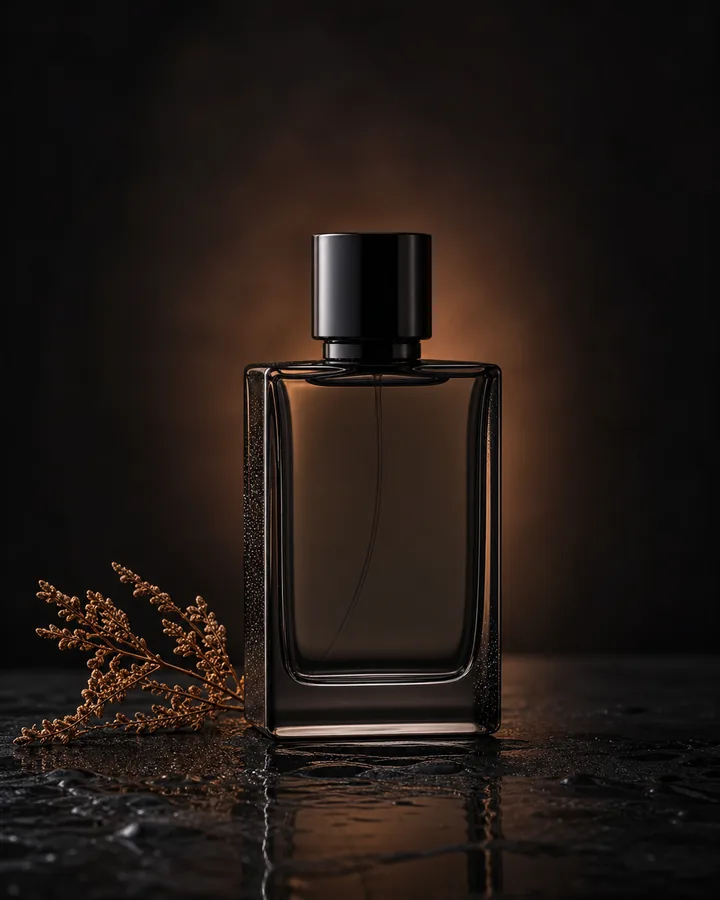
“A smoky glass perfume bottle on wet black slate, one dried botanical stem, soft amber rim light, quiet luxury mood, vertical product photography.”
Use this free AI image generator from text to create product scenes, campaign concepts, editorial illustrations, thumbnails, and more. Describe your subject, choose a style and size, then compare creative directions. No signup needed — start creating instantly.
A smoky glass perfume bottle on wet black slate, soft amber rim light, quiet luxury product photography.
Prompt, image, proof
A result is easier to judge when you can see the brief behind it. These examples pair each image with the words that shaped its subject, material, light, and composition. The AI image generator can move between photography, illustration, food imagery, and concept art without turning the page into a list of vague style names.
Prompt
“A smoky glass perfume bottle on wet black slate, one dried botanical stem, soft amber rim light, quiet luxury mood, vertical product photography.”
Prompt
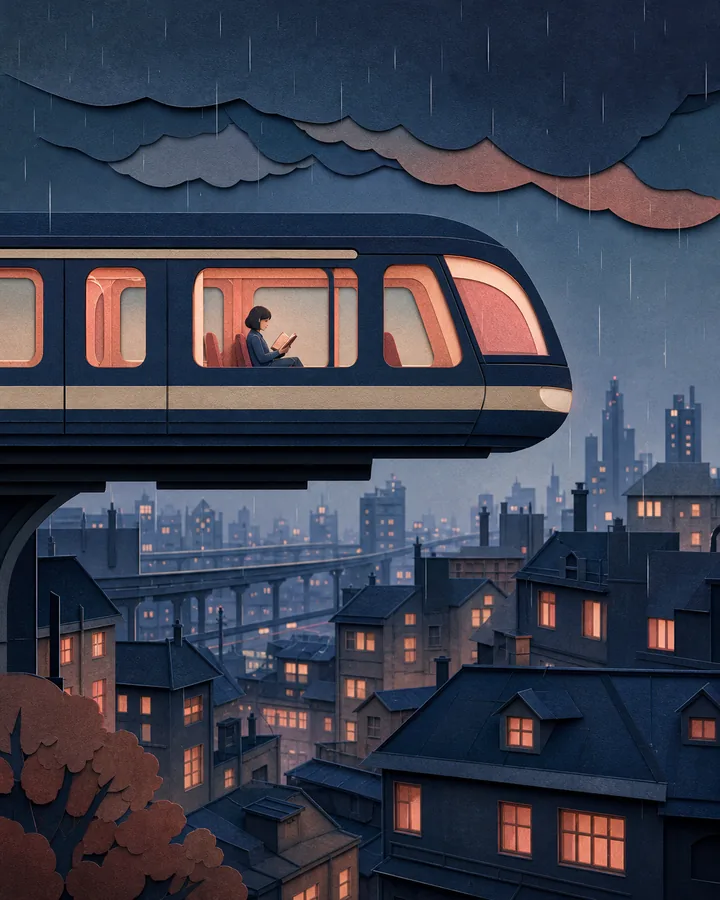
“A commuter reading on a floating train above a rainy city, layered paper-cut illustration, muted indigo and coral palette, vertical poster.”
Prompt
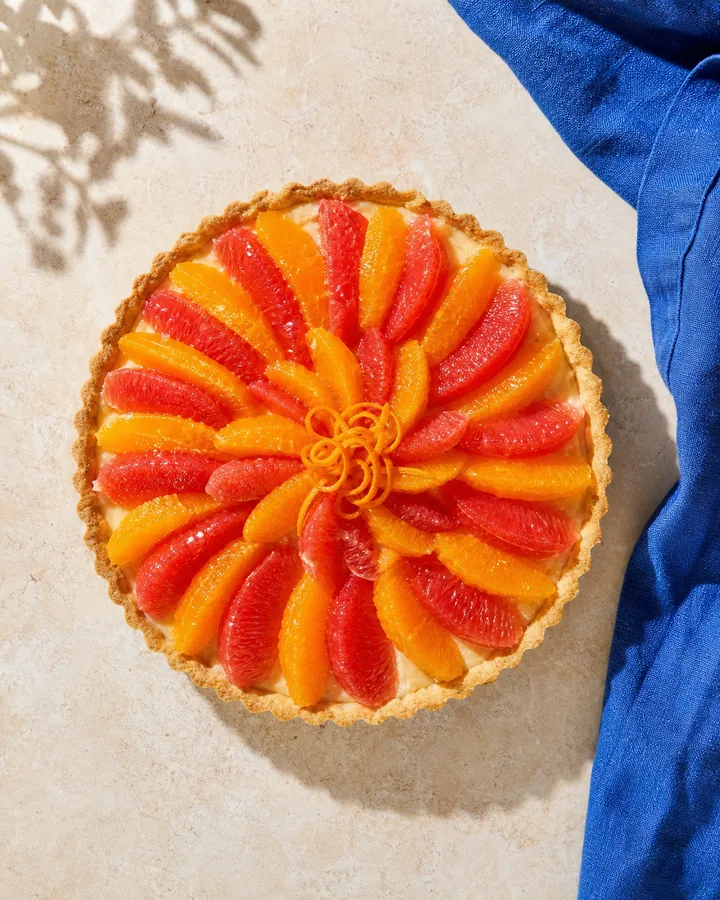
“Overhead citrus tart arranged like a sunburst, warm stone table, cobalt linen, crisp late-morning light, vertical social post with clean copy space.”
Prompt
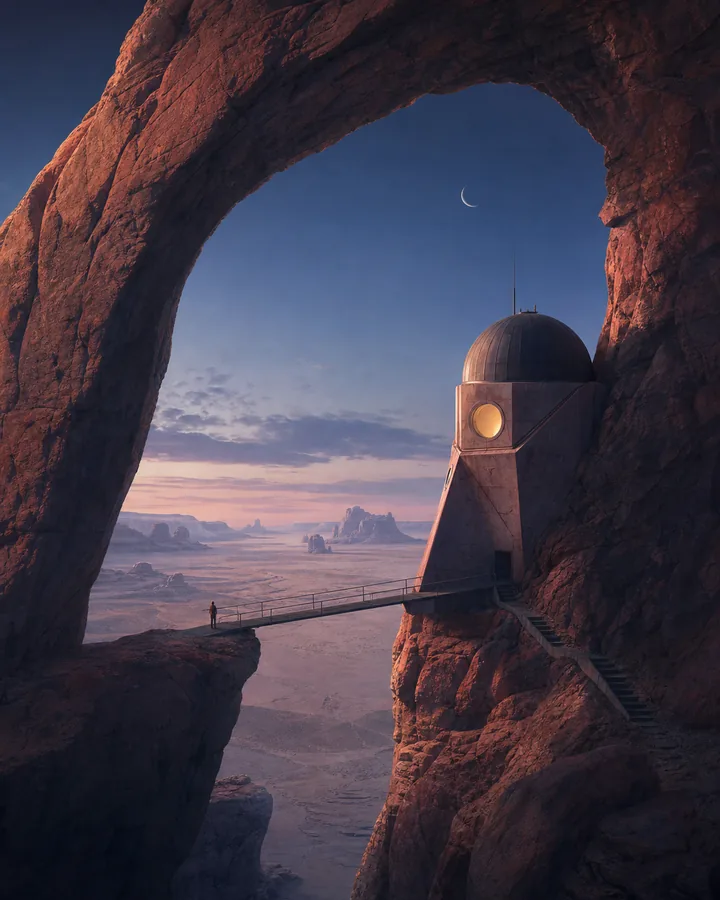
“A small observatory built into a red sandstone arch above a desert basin, blue dusk, one glowing window, cinematic architectural concept art.”
Useful before it is final
The best use starts with a real deliverable. An AI image generator can help you explore the visual direction before a photo shoot, design session, editorial deadline, or campaign review. Choose the closest task below, then write the prompt around its audience and final placement.
Use the AI image generator to compare surfaces, props, lighting, and seasonal settings around an unbranded product concept. Treat the result as art direction: verify packaging geometry, labels, colors, and claims before it becomes customer-facing work.
Create directions for posts, newsletters, thumbnails, and article headers in the ratio each channel needs. Keep the palette, lens language, and subject description stable when the AI image generator is helping you explore a connected series.
Compare several compositions for the same message before production. Ask for deliberate negative space where copy will sit, then use the best image as a concrete art-direction reference rather than another paragraph in a creative brief.
Explore environments, objects, color scripts, covers, or stylized scenes before a finished sketch exists. A small narrative action, clear scale cue, and time of day often produce a more useful concept than simply naming a broad genre.
A short route from brief to image
Make the first pass easy to judge. Give the AI image generator one clear job, set the destination before generation, and compare a small group of results. Refinement works best when each new pass changes one meaningful decision.
Name the subject first. Add setting, composition, light, material, palette, and final use only when they matter. A sentence such as “amber bottle on pale stone, soft side light, square product photo” gives the AI image generator more direction than a string of quality adjectives.
Choose a supported model and style, then set the ratio, resolution, and number of images. Decide whether the result is meant for a square post, a portrait poster, or a wide header before you spend time refining a composition that will not fit.
Inspect the returned images at full size. Keep the strongest direction, then adjust one variable such as the camera angle, light, material, or background. The AI image generator keeps recent work and reusable settings nearby, so the next pass begins with context instead of a blank form.
Prompt recipes, not magic words
A practical prompt has a subject, a setting, a visual treatment, and a destination. Add camera or material language when it changes the picture. The AI image generator does not need every fashionable adjective; it needs a hierarchy it can turn into a visible decision.
“Matte ceramic skincare bottle on pale travertine, warm morning side light, soft shadow, quiet editorial product photography, square composition, no label.”
“A night-shift baker cycling home at dawn, layered cut-paper illustration, dusty blue and apricot palette, generous sky, vertical magazine cover.”
“A weather station inside a black basalt sea arch, tiny figure crossing a metal bridge, foggy blue sunrise, cinematic environment concept art, wide frame.”
Choose a style, aspect ratio, resolution, and result count before you generate. Square works well for flexible product and social use; portrait fits posters and mobile placements; landscape suits headers and thumbnails. The AI image generator shows only the options available for the selected model, and it shows the credit estimate before you run the brief.
Signed-in creations stay close to the workspace. Open a result at full size, download it, or reuse its prompt, model, style, ratio, resolution, and count. Reuse Settings returns the brief to the AI image generator without starting a new task. You can change one decision, review the new estimate, and choose when to generate again.
Small text, logos, hands, geometry, and factual details can be wrong even when an image looks convincing. Check the full-size result before publishing, add exact typography in a design tool, and review trademarks or recognizable people when commercial work is involved. A strong visual direction still benefits from human selection and finishing.
Questions before the first prompt
Short answers about prompts, results, reuse, credits, and publishing. Open only the question you need.
An AI image generator creates a new image from a written description and selected output settings. It does not search for a matching stock photo. You describe the subject, setting, light, material, mood, and composition; the model interprets those choices and returns one or more original variations for you to review.
Yes. No signup is needed to create AI images online. Guest use is limited, and results may include a watermark; access is not unlimited or always watermark-free.
Start with the subject and intended composition, then add setting, lighting, material, palette, and use. Concrete phrases such as “soft window light” or “brushed aluminum” are more useful than “stunning” or “high quality.” Generate a small group and refine one decision at a time.
The AI image generator can explore product scenes, social images, editorial illustrations, campaign concepts, thumbnails, covers, and environment ideas. Results depend on the prompt and selected model. For work that requires exact logos, small text, regulated claims, or fixed product geometry, plan a careful review and a separate finishing step.
Generation is intentionally variable. The same brief can produce different framing, detail, and emphasis, which is useful when you are looking for a direction. If consistency matters, keep the stable prompt ingredients, ratio, style, and model unchanged, then alter only the part you want to test.
Yes. Signed-in creation details can return the prompt and supported settings to the workspace. Reuse Settings does not run a task by itself. Review the restored brief, make any changes, check the estimated cost, and press Generate only when the next version is ready.
Cost depends on the selected model, available resolution, and number of requested images. The workspace shows an estimate before the AI image generator starts. Opening history, viewing a result, or choosing Reuse Settings does not spend credits; a new task begins only after you confirm Generate.
Generated visuals can enter commercial creative work, but access to the tool is not legal clearance. Before publishing, review the result for trademarks, recognizable people, misleading details, unwanted similarities, platform rules, contracts, and applicable law. Keep the prompt and editing record when provenance matters to the project.
Signed-in generation records are saved so Recent Works, detail views, downloads, and reusable settings can function. Prompt and generation data also travel through the services needed to complete the task. Do not describe confidential, personal, regulated, or unauthorized material unless the project policy clearly permits it.
Start with one concrete scene
Describe the subject, scene, and visual direction, then compare the results. No signup needed.